
Snippets
Snippets are a way to store reusable pieces of text that can be parametrized using dynamic placeholders and pasted wherever you need them. Most importantly, snippets can be universally expanded if a keyword is specified.

Get started with snippets
In order to create your first snippet, just search for the Create Snippet command.
- The title is used to index your snippet for search, when browsing them using the Manage Snippets command.
- The content of the snippet is expressed as plain text. You can use curly brace delimited dynamic placeholders to introduce programmatic elements to your snippet. More on that below.
- You can optionally specify a keyword. When this keyword is typed anywhere (not only in the vicinae window) it will automatically expand to the contents of the snippet in place. If a keyword is not specified, the only way to use the snippet is to copy it to clipboard from the manage snippets command.
- If a keyword is specified, you can restrict the expansion of that snippet to specific application windows.
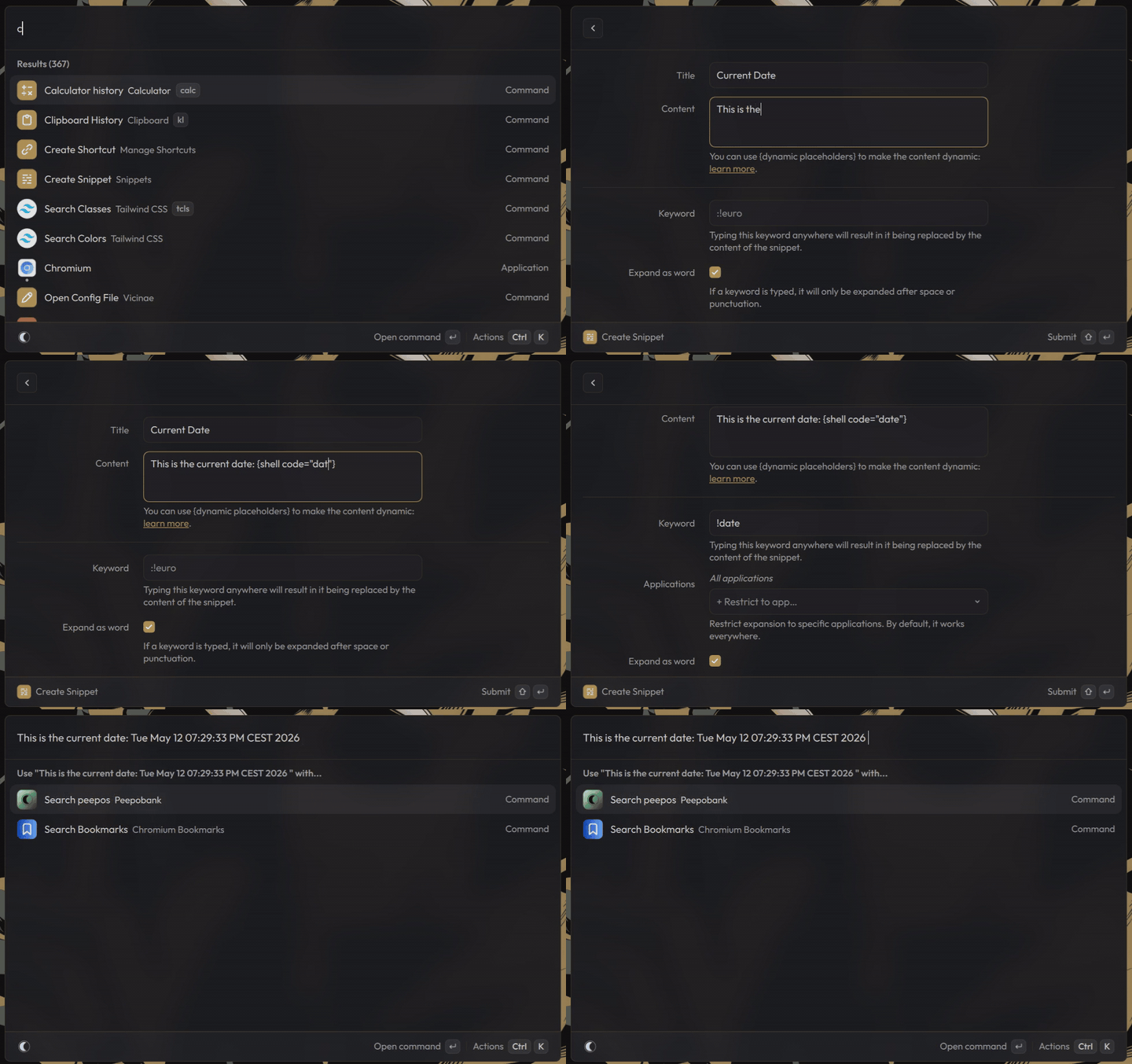
Keyword expansion
Trigger expansion
If you filled in the keyword field while creating your snippet, then you can expand it by just typing that keyword anywhere (not only in the vicinae window).
Undo expansion
Since snippet text injection is carried by a clipboard paste, the preferred way to undo a snippet is to use the mechanism provided by the current app in order to undo the last action (here, a clipboard paste). Most of the time, a single Ctrl-Z works.
For shorter snippets or in apps that do not have a designated way to undo a clipboard paste, you can just press ESC to undo the expansion using vicinae's builtin undo mechanism. Unlike native undo, this will also write the initial keyword back.
Undoing long snippets can take a long time as undo is implemented by sending a series of backspaces that need to be sent at a fixed interval (and, may not even be interpreted properly in some apps).

Dynamic placeholders
One of the most appealing features of snippets is that they can expand dynamic content. They can take named arguments, execute shell code, copy current clipboard text and much more. As shown in the video above, you can get the list of available placeholders simply by typing { and autocomplete from there.
A dynamic placeholder always follows the syntax: {<name> [...<key>="<value>"]}.
Below we discuss the most important placeholders and how they work:
Shell code
You can run shell code inside your snippet using a {shell} placeholder. This placeholder will expand to the full output of the command (stdout only):
Hi {name}, today is {shell code="date"}
Note that all shell placeholders in your snippet are run concurrently, and each has an execution budget of 2s. If a shell placeholder takes too long or hangs, it is killed and expands to nothing. Generally it is recommended that you only execute short commands. If you want to run longer scripts you are probably looking for script commands.
Arguments
Similarly to shortcuts you can specify named arguments that will need to be explicitly entered by the user before expanding the snippet.
You just need to use the {argument} placeholder like so:
{argument name="my_arg"}
You can also use the short form of it, which works as long as it doesn't conflict with any other named placeholder:
# internally converts to {argument name="my_arg"}
{my_arg}
Arguments are only prompted when expanding a snippet from the Manage Snippets command. When expanded from a keyword, arguments are silently replaced by the empty string.
Cursor
Use {cursor} in your snippet text so that your cursor will be placed at this exact location after expansion happens.
This only matters if you are expanding the snippet from a keyword, as doing it from the launcher will directly copy the expanded content to your clipboard without injecting any input.
For obvious reasons, you cannot use more than one cursor placeholder in the same snippet.
Cursor placement is implemented by injecting "right key" keystrokes. If the app you are expanding your snippet in doesn't understand these, cursor placement may not fully work.
Avoid placing a {cursor} placeholder to the left of a big expansion, as it will make vicinae send a long serie of inputs in order to move the cursor back to the left. This is slow and can't really be sped up in any meaningful way.
Clipboard text
{clipboard} expands to the text content present in the clipboard, if any.
If the clipboard offers no text content (an image is copied) then it expands to nothing.
Date
You can use the {date} placeholder to expand the current date in the specified format:
{date format="yyyy-MM-dd hh:mm"}
The format is the QDate format.
UUID
Expands to a UUID v4. Version is not configurable at the moment.
Security implications
In order to implement snippets and other features relying on input injection, vicinae spawns a binary called vicinae-input-server that has two main roles:
- inject input (via /dev/uinput)
- monitor input (by reading /dev/input/eventXX for each keyboard/pointer device)
The code powering the vicinae-input-server is kept intentionally minimal in order to minimize the amount of logic a privileged binary like this one executes, making it straightforward to audit.
We give it the required permissions by using kernel capabilities (setcap).
Troubleshooting and known limitations
vicinae-input-server fails to start
The main reason vicinae-input-server can fail to start is if it's not given the elevated privileges it requires.
This is normally done at post install time by the package manager. If you are using a non conventional packaging method, you may need to run setcap on the input server manually like so:
sudo setcap "cap_dac_override+ep" $prefix/libexec/vicinae-input-server
Where $prefix is the installation prefix of vicinae, typically /usr.
On why this is needed, please read this.
Keyboard layout
For technical reasons, the snippet system is unable to know what keymap you configured your compositor to use. In most cases, it can be safely inferred from the environment using the primary locale, but it may not always be enough.
You can specify a specific keyboard layout that is to be used for input injection and monitoring in the settings preferences.
Key delay
On very slow systems or compositors, the delay between each keystroke may not be enough and some may get discarded. You can configure various delays in the snippet extension preferences as well.
Undoing or moving the cursor takes too long
This is a known issue that unfortunately doesn't have a good fix. This is because these two behaviors rely on injecting input at a given interval so that the app has time to consume them, which can only go so fast.
Typing anything or moving your mouse will automatically cancel any pending injection, so that it doesn't leak to other windows or trigger unexpected behavior.